A product tutorial for Canadian accounting firms and bookkeepers. Last reviewed: 24 November 2026. Verify current CRA figures on the CRA website before relying on them.
What Does Running Payroll Involve?
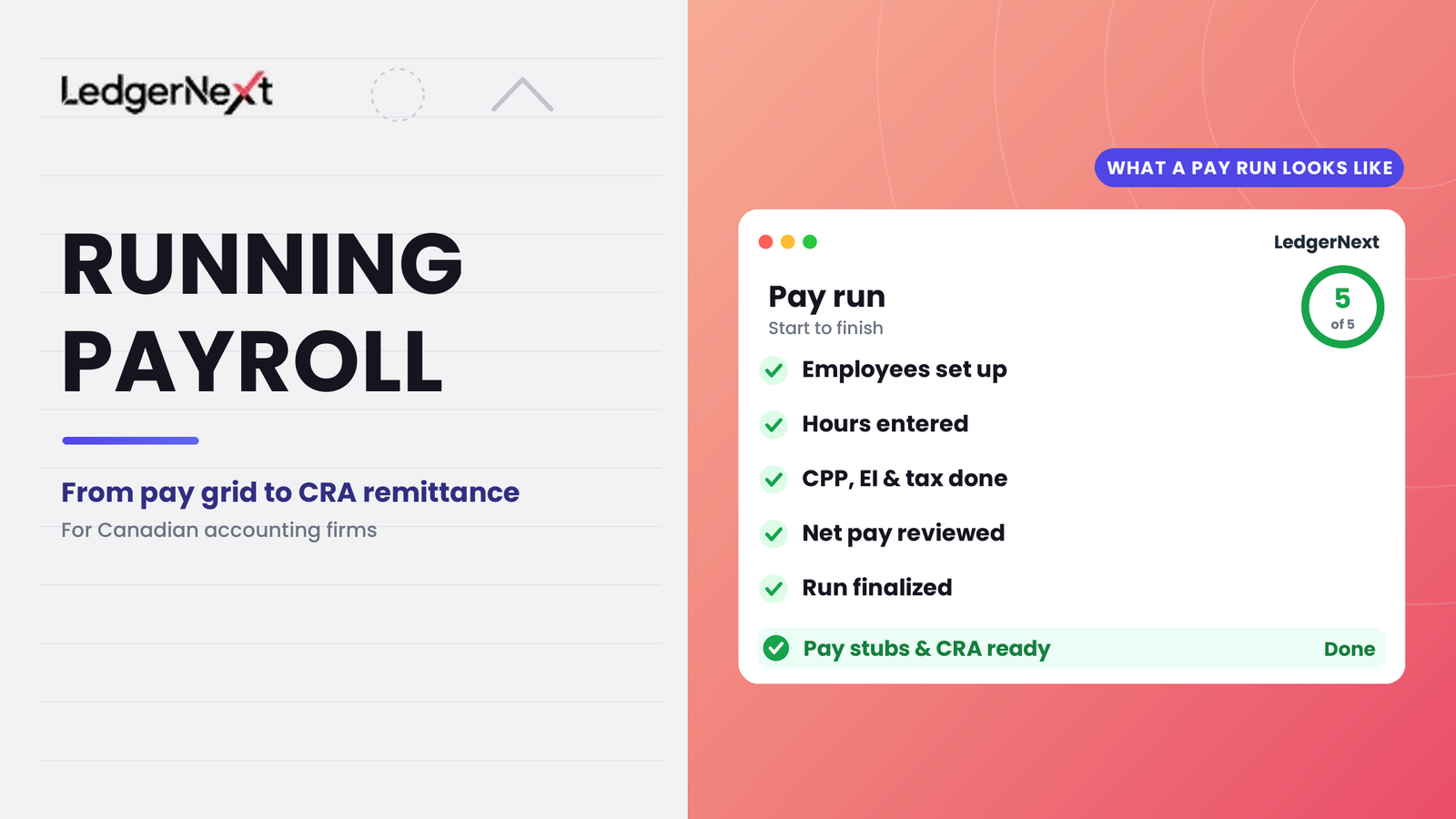
Picture a firm running payroll for a client with a few salaried staff and a handful of hourly employees. Before anyone is paid, the team has to confirm each person’s details and pay rate, collect the hours, check for new hires or leavers, apply the right deductions, process the run, and produce the records the client and the CRA will expect. Miss a step and the error shows up in someone’s net pay, in the source-deduction remittance, or in the books.
Running payroll is more than calculating salaries. It means managing employee information, pay schedules, earnings, deductions, statutory contributions and payroll records, and keeping all of it aligned with the client’s bookkeeping. LedgerNext is a Canadian platform that brings employee setup, payroll processing, payroll reports and bookkeeping together on shared client records, so a payroll run flows into the books without duplicate entry. This guide walks through the stages in order: preparing your information, setting up employees, configuring pay groups, reviewing inputs, running payroll, generating reports, and connecting it all to the client’s accounts.
Before You Run Payroll: Information to Prepare
Payroll accuracy depends on complete, verified information. Gather it before you touch a pay run.
Employee information
For each employee you need their legal name and contact details, employment status and start date, province of employment, Social Insurance Number where required, and their federal and applicable provincial or territorial TD1 information. You also need their salary or hourly rate and any benefits and deductions that apply. The province of employment and the TD1 details matter most, because they drive the income tax calculation.
Payroll schedule and pay period
Confirm the pay frequency (weekly, biweekly, semi-monthly or monthly), and keep the pay period separate in your mind from the pay date. The pay period is when the work was earned; the pay date is when the employee is paid. Payroll cut-off dates matter too, because overtime, bonuses and unpaid leave all change the inputs and need to be in before you process.
Earnings, deductions and benefits
Know the regular wages or salary, any overtime and additional earnings, bonuses and commissions, employee deductions, taxable benefits and employer contributions that apply to each person. Setting these up to match the actual employment agreement is what keeps the calculated pay correct.
| Information | Why it matters |
|---|---|
| Employee details | Accurate employee records |
| TD1 information | Income tax deduction calculations |
| Pay rate | Correct gross earnings |
| Pay schedule | Correct payroll period |
| Benefits and deductions | Accurate payroll calculations |
| Hours and overtime | Correct variable earnings |
For the employer side, you also need the client’s legal business name, Business Number (BN) and CRA payroll program (RP) account, and the province of employment. The employer must hold the appropriate CRA payroll account where one is required. LedgerNext does not register a CRA payroll account for you. For the official requirements, see the CRA payroll guidance.
Step 1: Set Up Employees in LedgerNext
In LedgerNext, employees live inside a client’s Payroll workspace, so open the correct client first. Getting the right client matters when your firm manages several: you do not want to edit one client’s records while looking at another.
Add the employee record
From the client’s Payroll area, open Employee Information and add an employee. The employee record captures personal information and contact details, employment information and start date, province of employment, and the compensation details. Inaccurate master data here flows straight into the calculations and the reports, so it is worth checking twice.
Enter tax information (TD1)
Each employee record holds federal and provincial tax settings, including the TD1 credit information and any exemptions, which LedgerNext uses to calculate income tax withholding. Enter the employee’s TD1 details accurately. The CRA’s employer guidance sets out the TD1 requirements.
Configure earnings, deductions, benefits and accruals
LedgerNext keeps libraries of earning types (such as regular pay, salary, overtime, statutory holiday, vacation and bonus), deductions (including the statutory CPP, second CPP, EI, and federal and provincial income tax, plus any custom deductions), employer-paid benefits, and accruals such as vacation and sick leave. Configure each employee’s pay elements to reflect their actual compensation structure, and remember that benefits are not all treated the same way for CPP, EI and income tax.
Review before you proceed
Before the first run, check the employee records are complete: name, SIN, start date, province of employment, TD1 details, pay rate, and the earnings, deductions and benefits that apply.
Step 2: Configure Pay Groups and Payroll Schedules
What are pay groups?
A pay group bundles employees who are paid on the same frequency and schedule. In LedgerNext a pay group carries a name, a frequency and the number of pays per year, and you assign employees to the group that matches how they are paid.
Choose the pay schedule
Common Canadian frequencies are weekly, biweekly, semi-monthly and monthly. A café might pay hourly staff weekly and salaried managers semi-monthly, which would be two pay groups. LedgerNext then generates a run schedule of pay periods with their start, end, processing and payment dates for each group.
Review the pay period and pay date
Check the pay period, the pay date and the cut-off before you process. The pay date is what drives your CRA remittance due date, not the end of the pay period.
Step 3: Review Payroll Inputs Before Processing
A short review before you run payroll prevents most corrections later. Check for:
- New employees and any change in employee status.
- Hours worked and overtime.
- Approved bonuses and additional earnings.
- Unpaid leave or other adjustments.
- Changes to employee deductions or benefits.
- Year-to-date adjustments, where they apply.
Pre-payroll checklist: employee details are current; hours and overtime reviewed; additional earnings included; deductions and benefits checked; the correct pay period and pay date selected.
For firms, the inputs usually come from the client, and late or incomplete data is the common cause of rework. Agreeing a clear submission deadline and a process for exceptions helps, which is covered in LedgerNext’s own piece on why payroll client data arrives late.
Step 4: Run Payroll in LedgerNext
This is the core of the workflow. LedgerNext supports regular, bonus, off-cycle and year-to-date adjustment runs, and calculates CPP, EI and income tax automatically as you process.

Select the payroll run type
| Payroll run type | When it is used |
|---|---|
| Regular payroll | Normal scheduled employee pay |
| Bonus payroll | Processing bonus payments |
| Off-cycle payroll | A payroll run outside the normal schedule |
| YTD adjustment | Correcting or adjusting year-to-date payroll figures |
The run types do not all follow an identical path, so pick the one that matches what you are paying.
Process the run
Open Process Payroll and generate the run for the pay group and period. LedgerNext opens a pay grid where you enter or confirm hours and amounts per employee, with columns for the employee, department, rate, regular hours and salary. One-off changes that apply only to this period go in as payroll exceptions rather than permanent edits to the employee record.


Understand the automatic CPP, EI and tax calculations
LedgerNext calculates the statutory deductions for you from the employee setup and the pay. For a Canadian employee these are the Canada Pension Plan (CPP) contribution and the second CPP contribution where it applies, the Employment Insurance (EI) premium, and federal and provincial or territorial income tax. The amounts depend on the employee’s circumstances, province of employment, pay type and the applicable payroll rules, so correct setup still matters. Quebec payroll can involve QPP and QPIP rather than the standard CPP and provincial setup; confirm the specific handling if you run Quebec payroll. For how the deductions are determined, see the CRA guidance on calculating payroll deductions.
Bonus and off-cycle runs
Bonus and off-cycle runs sit outside the regular schedule. Because a bonus is not a regular recurring payment, the income tax on it can be calculated differently from salary. LedgerNext applies the non-periodic (Factor B) treatment for bonus calculations. The result still depends on the employee’s situation, so review the figures rather than assuming every bonus is handled the same way.
Review the results before finalizing
Before you finalize, review the calculated run: gross pay, employee deductions, employer contributions and net pay, and watch for anything unusual against the previous period, new employees, one-time payments and adjustments. In the captured run, for example, the preview showed gross of $3,500.00, deductions of $602.16 and net pay of $2,897.84, with a validation check reporting no violations. Finalizing is a deliberate, separate action: review first, then finalize.

Step 5: Review Payroll Results and Generate Reports
Once a run is finalized, LedgerNext produces the pay statements and payroll reports your client and the CRA will need.
Employee pay statements
A pay statement shows each employee their earnings, each deduction, and net pay for the period, with current and year-to-date figures. It is the document employees use to see how their pay was worked out.

Payroll register
The payroll register gives the run-level view: earnings and deductions per employee, grand totals, and an employer remittance summary. It is the supporting document for reviewing a run and for recording it in the books. In the captured run the register’s employer remittance summary totalled $872.93.

CRA remittance summary
The CRA remittance summary sets out the source deductions and employer contributions to remit for a period: income tax, CPP and second CPP, and EI (employee and employer). In the captured run it showed tax of $354.21, CPP of $381.80, second CPP of $0.00 and EI of $136.92, totalling $872.93, with a due date shown on the report. One important point: generating this summary is not the same as remitting to the CRA. It tells you what to remit; paying it is a separate step the employer completes with the CRA.

Year-end documents: T4s and ROEs
LedgerNext also generates T4 slips, which report an employee’s employment income and deductions for the calendar year, and Records of Employment (ROEs) for an interruption of earnings. Generating a T4 or an ROE in LedgerNext is not the same as filing it with the CRA or submitting it to Service Canada; treat those as separate steps and confirm the filing and delivery route. The full year-end sequence is covered in LedgerNext’s payroll year-end checklist.
Step 6: Connect Payroll with Your Bookkeeping
This is where LedgerNext’s single platform pays off, especially for a firm already doing the client’s books.
Why payroll needs to reach the books
Every payroll run affects the accounts: wage and salary expense, employer CPP and EI expense, employee deduction liabilities, employer contribution liabilities, and the net pay owed or paid. If payroll and bookkeeping live in separate systems, someone has to move those numbers across by hand.
How LedgerNext connects the two
In LedgerNext, payroll and bookkeeping share the same client records, and a finalized payroll run posts directly into the books, so the payroll numbers reach the ledger without duplicate entry or re-syncing.
Review the postings
Posting automatically does not remove the need to review. Check that the run is reflected in the right client and period, and reconcile the payroll register totals against wage and salary expense, employer contribution expense, the payroll liability balances and the net payments. LedgerNext’s own guide to payroll-to-general-ledger reconciliation sets out the full procedure, and its central point is worth keeping in mind: payroll can be processed perfectly and still be recorded wrong.
Step 7: Complete Your Post-Payroll Checks
Finalizing the run is not the end of the job. After payroll:
- Review the payroll reports and totals one more time.
- Confirm that net pay is paid to employees by whoever handles payments. LedgerNext does not initiate direct deposits for you unless that is a confirmed part of your setup.
- Review the CRA remittance obligations and due dates for the employer’s remitter type, and remit the source deductions and employer contributions on time.
- Retain the payroll records: registers, pay statements, employee setup and TD1 information, adjustments, remittance confirmations and client approvals.
- Prepare the inputs and any changes for the next payroll cycle.
Common Payroll Mistakes to Avoid
- Incorrect employee tax information. A wrong TD1 or province of employment distorts the income tax withheld.
- Using the wrong pay schedule or pay period. It throws off the calculation and the remittance timing.
- Missing overtime or additional earnings. Variable pay left out means an understated run and a correction later.
- Incorrect deductions or benefit configuration. Benefits are not all taxed the same way, so check each one.
- Not reviewing the calculated payroll. Finalizing without checking gross, deductions and net pay lets errors through.
- Incorrect year-to-date adjustments. YTD edits ripple into CPP, EI and tax, so make them deliberately.
- Not reviewing the payroll reports. The register and remittance summary are your audit trail; read them.
- Assuming a remittance summary means the CRA has been paid. It does not. Remitting is a separate step, as is filing a T4 or ROE.
Best Practices for Running Payroll Across Multiple Client Files
For a firm running payroll for many clients, consistency is what keeps it manageable.
- Keep accurate employee records for every client, and standardise how you set up new employees so nothing is missed.
- Standardise input collection and review. A common cut-off and a documented process for late data reduces rework and unpaid scope creep.
- Use consistent pay schedules where appropriate, and keep each client’s pay calendar visible.
- Validate changes before every run: new hires, terminations, rate changes, overtime, bonuses and deductions.
- Keep payroll reports organised by client and pay period, and review the payroll-to-books postings.
- Keep clear ownership of payments and CRA remittances, so everyone knows who remits and by when.
LedgerNext’s multi-client workspace and shared client records are built for exactly this: separate records per client, with payroll and bookkeeping in one place.
Frequently Asked Questions
How do you run payroll in LedgerNext?
Set up each employee with their details, TD1 information, earnings, deductions and benefits, assign them to a pay group and schedule, review the inputs for the period, then process the run in Process Payroll. You enter hours in the pay grid, review the calculated gross, deductions and net pay, finalize, and generate the pay statements and reports.
What information is required before running payroll in Canada?
Employee legal names and contact details, SIN where required, province of employment, federal and applicable provincial TD1 information, pay rates, hours, benefits and deductions, and the pay schedule. On the employer side you need the Business Number and CRA payroll (RP) account.
Can LedgerNext calculate CPP, EI and income tax deductions?
Yes. LedgerNext calculates CPP, the second CPP where it applies, EI and federal and provincial income tax automatically as you process a run. The results depend on accurate employee and payroll setup, so the inputs still need to be correct.
What types of payroll runs does LedgerNext support?
Regular, bonus, off-cycle and year-to-date adjustment runs. Regular runs handle scheduled pay, bonus runs handle bonus payments with non-periodic (Factor B) tax treatment, off-cycle runs sit outside the schedule, and YTD adjustments correct year-to-date figures.
Can LedgerNext generate T4 slips and ROEs?
Yes, LedgerNext generates T4 slips and Records of Employment. Generating them is not the same as filing a T4 with the CRA or submitting an ROE to Service Canada, which are separate steps you complete through the relevant government route.
Can payroll entries be posted to bookkeeping records?
Yes. Payroll and bookkeeping share the same client records in LedgerNext, and a finalized payroll run posts directly into the books, so the payroll numbers reach the ledger without duplicate entry. You should still review the postings against the payroll reports.
Can accounting firms manage payroll for multiple clients?
Yes. LedgerNext is built for firms, with a multi-client workspace and separate records per client, so a team can run payroll and keep the books for many clients from one platform.
Simplify Your Payroll Workflow With LedgerNext
Running payroll well comes down to accurate employee information, correct calculations and proper reporting, done the same way every cycle. LedgerNext brings employee setup, payroll processing, reports and bookkeeping into one connected platform, so a finalized run flows into the client’s books and the records you need are generated in the same place. Set up your employees and pay groups once, review your inputs each period, process the run, check the results, and keep payroll and the ledger in step.
Run payroll and keep the books in one place
LedgerNext brings payroll and bookkeeping together on shared client records, built for Canadian accounting firms running payroll across many clients.